
SEO WebP Image Optimizer for Magento 2 User Guide
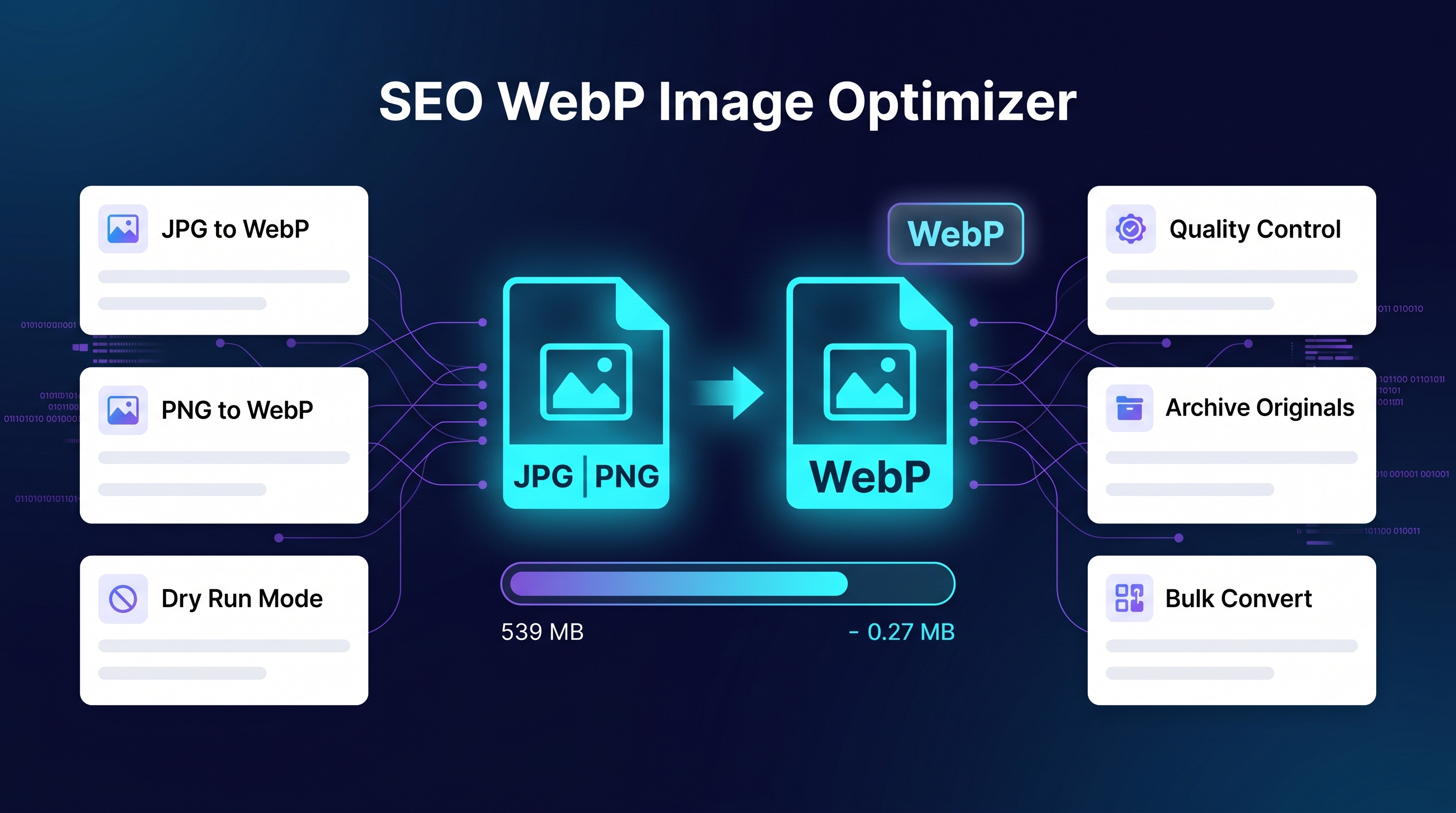
Heavy product images crush Core Web Vitals. This guide covers SEO WebP Image Optimizer ($149)—bulk JPG/PNG→WebP conversion from admin with dry-run preview and archive-before-delete safety.
This page is the primary shopper overview. Product details, pricing, and add-to-cart live on the SEO WebP Image Optimizer for Magento 2 page. General Composer install steps: Installation guide.
toweringmedia/module-seo-images-webp (module Toweringmedia_SeoImagesWebp) — images before webp. module-seo-webp-image-optimizer does not exist. Copy the exact command from Installation Overview below.
Table of Contents
Why Magento Images Hurt SEO
Unoptimised media is still one of the easiest CWV wins left on Magento stores:
- Large JPG/PNG catalogs — slow LCP on category and product pages
- Manual conversion — agencies cannot re-export thousands of SKUs by hand
- Risky deletes — converting without archive makes rollback hard
What WebP Optimizer Solves
SEO WebP Image Optimizer converts existing pub/media JPG/PNG files to WebP in bulk from an admin utility.
- Bulk WebP conversion from Magento admin
- Significant file-size reductions vs JPEG/PNG
- Dry-run preview before writing
- Archive-before-delete safety options
Key Features
- Admin bulk utility
- Dry-run mode
- Archive safety
- CWV-oriented image weight reduction
System Requirements
- Magento: 2.4.4 – 2.4.7+ (Open Source & Adobe Commerce)
- PHP: 8.1, 8.2, or 8.3
- Towering Media Composer repository credentials
- Server support for WebP encoding libraries as documented in the package
General Composer install steps for Towering Media modules: Installation guide.
Setup Overview
Install, open the admin utility, dry-run a folder, then convert with archive enabled.
Install with Composer
composer require toweringmedia/module-seo-images-webp
php bin/magento setup:upgrade
php bin/magento cache:flush
Step 1: Install
Require toweringmedia/module-seo-images-webp and upgrade Magento.
Step 2: Dry-run
Select a media path and preview conversion counts/sizes without writing.
Step 3: Convert with archive
Enable archive-before-delete, run conversion, then flush Magento caches / CDN as needed.
Step 4: Verify storefront
Confirm product images render and LCP candidates are lighter in DevTools.
Need help? Contact Towering Media or browse Magento 2 Extensions.
Frequently Asked Questions
Will old JPG files remain?
Use archive settings to retain originals until you are confident WebP delivery is correct.
Does this replace a CDN image service?
It optimises Magento media at the source. You can still use a CDN in front.
Related Extensions & Resources
Also useful: Installation · Contact support · All Magento 2 extensions
Want our Magento team to handle it?
Towering Media installs, configures, and customizes SEO WebP Image Optimizer for Magento 2 stores — along with technical SEO, structured data, and Core Web Vitals work.
Shrink Magento images for speed and SEO
Bulk-convert to WebP safely with SEO WebP Image Optimizer.