
Magento 2 Back-in-Stock Notifications User Guide
Magento 2 Back-in-Stock Notifications User Guide
When a SKU sells out, shoppers still want a ping—not a dead Add to Cart. This guide covers Towering Media Back-in-Stock Notifications ($149, module-backorder): email (and optional SMS) alerts when stock returns—plus install overview, configuration, and FAQ. This is not Admin Allow Out of Stock Order.
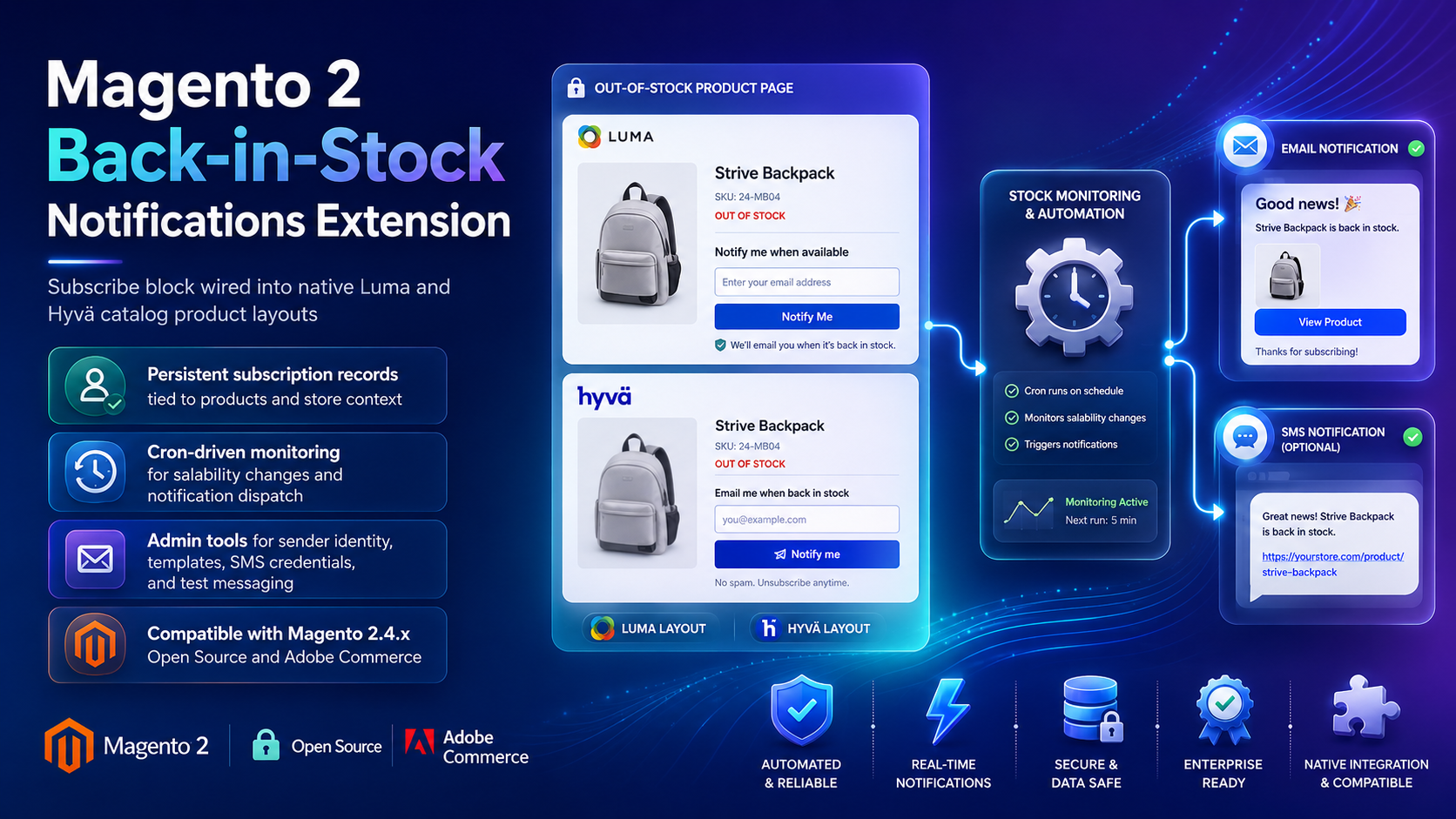
For deep configuration screenshots and edge cases, see the detailed wiki documentation. Product details and add-to-cart live on the Magento 2 Back-in-Stock Notifications Extension page.
Table of Contents
Why Sold-Out SKUs Leak Demand
Out-of-stock pages without a capture path lose buyers to competitors:
- No waitlist — shoppers bounce when Add to Cart is gone
- Manual follow-up — staff cannot email every interested customer
- Email deliverability — restock mail never arrives without solid SMTP
- Confused with admin OOS ordering — different problem than letting admins sell past zero
What This Extension Solves
The Back-in-Stock Notifications extension lets shoppers subscribe for email (and optional Twilio SMS) when a product is available again.
- Storefront subscription when inventory is unavailable
- Automatic email when stock returns
- Optional Twilio SMS notifications
- Admin visibility into alert queues
- Works with Magento inventory / stock status flows
Key Features
- Magento 2.4 / PHP 8.x
- Pairs cleanly with Towering Media SMTP for deliverability
- Distinct from Admin Allow Out of Stock Order
System Requirements
- Magento 2.4.x
- Working Magento email (preferably SMTP)
- Optional Twilio account for SMS
- Towering Media Composer credentials
General Composer install steps for Towering Media modules: Installation guide.
Installation Overview
Step 1: Authenticate Composer
Add your Towering Media credentials to auth.json in the Magento root (same pattern as other Towering Media extensions).
Step 2: Require the package
composer require toweringmedia/module-backorderStep 3: Enable and upgrade
php bin/magento module:enable Toweringmedia_Backorder
php bin/magento setup:upgrade
php bin/magento setup:di:compile
php bin/magento setup:static-content:deploy -f
php bin/magento cache:flush
Exact module enable name may match your package’s registration.php / module.xml—confirm in the package after install. Production stores should follow your normal deploy process.
Need help installing? Contact Towering Media or browse more modules in Magento 2 Extensions.
Configure Alerts in Admin
- Stores → Configuration → Towering Media → Back-in-Stock / Backorder alerts (see wiki for exact label).
- Enable the feature; configure sender and templates.
- Optional: enter Twilio credentials for SMS.
- Confirm cron is running so queued alerts send.
- Save Config; flush cache.
Test a Restock Alert
End-to-end check:
- Set a product to out of stock; subscribe from the storefront
- Return qty to stock (or adjust MSI source qty)
- Confirm alert email arrives (and SMS if enabled)
- Confirm subscriber is cleared/marked sent in admin
Troubleshooting
Emails not sending
- Verify Magento “Disable Email Communications” is No
- Install/configure SMTP and send a test
- Confirm cron is running
Subscription form missing
- Product must be out of stock / not salable per your stock settings
- Flush caches; confirm module output enabled
Frequently Asked Questions
Is this Admin Allow Out of Stock Order?
No. Admin Allow OOS is for admin order entry past zero. This module notifies shoppers when stock returns.
SMS required?
No—email works alone. SMS is optional via Twilio.
Deep docs?
Wiki: backorder / back-in-stock wiki.
Price?
$149 on the product page.
Related Extensions & Resources
Want our Magento team to handle it?
Towering Media installs, configures, and customizes Back-in-Stock Notifications for Magento 2 stores — along with ongoing Magento maintenance, admin tooling, email deliverability, and reporting.
Get the Extension
Turn stockouts into waitlists—email and optional SMS when inventory returns, without confusing this for admin OOS ordering.
Prefer screenshots and deep steps? Open the full wiki guide.