
Magento 2 Admin Allow Out Of Stock Order User Guide
Phone orders, wholesale quotes, and special requests often need inventory exceptions that Magento blocks by default. This guide shows how Magento2 Admin Allow Out Of Stock Order ($149) lets authorized admins place backend orders for sold-out items—while storefront shoppers still see accurate availability.
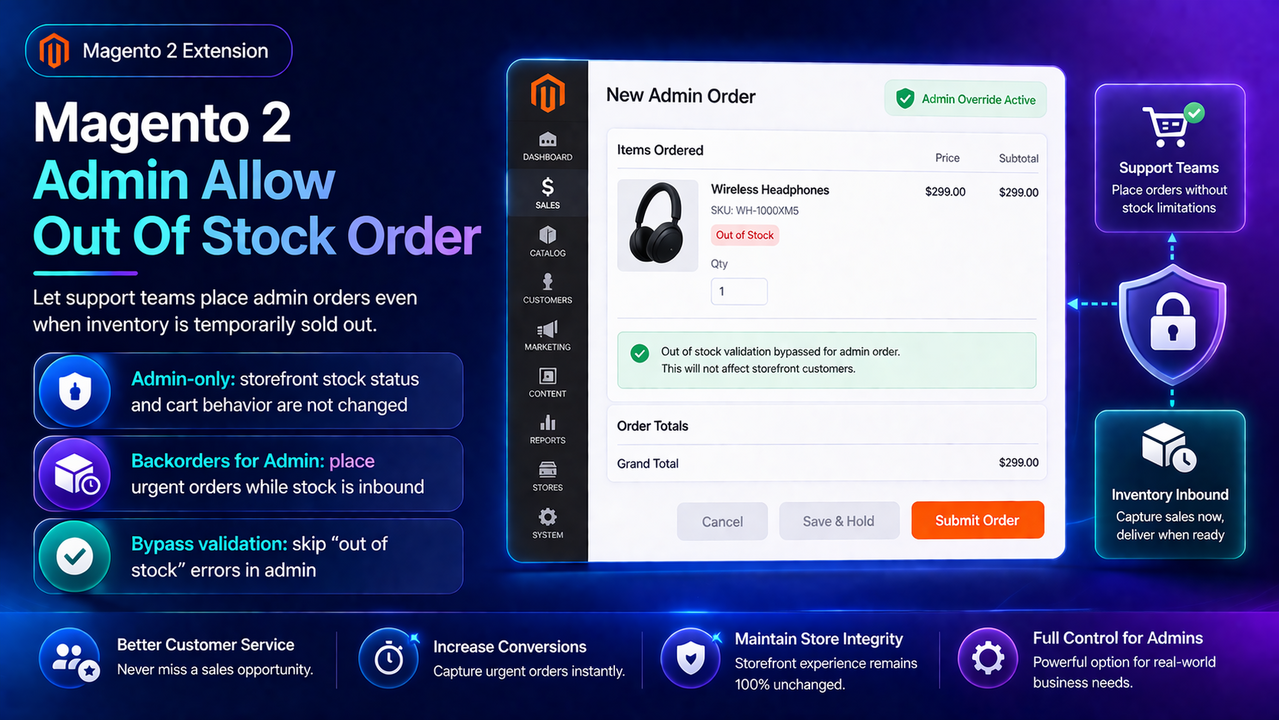
This CMS page is a shopper-friendly overview. For deeper notes and checklists, see the wiki user guide. Product details and add-to-cart live on the Magento2 Admin Allow Out Of Stock Order page.
toweringmedia/module-admin-allow-out-of-stock-order (SKU TM-EXT-ADMINALLOWOUTOFSTOCKORDER). It does not add customer restock alert forms. For shopper email/SMS when inventory returns, see Back-in-Stock Notifications (toweringmedia/module-backorder)—related workflow, different product.
Table of Contents
Why Admin Orders Get Blocked
Magento’s stock rules protect the storefront—but they also apply when staff create orders in Admin. That creates friction for real merchant workflows:
- Phone / email orders — a customer wants an item that shows zero qty today
- Wholesale & B2B — sales teams need to book inventory that will replenish next week
- Pre-orders & specials — accepted commitments before stock lands
- Internal transfers — staff create controlled exceptions without changing public salability
What This Extension Solves
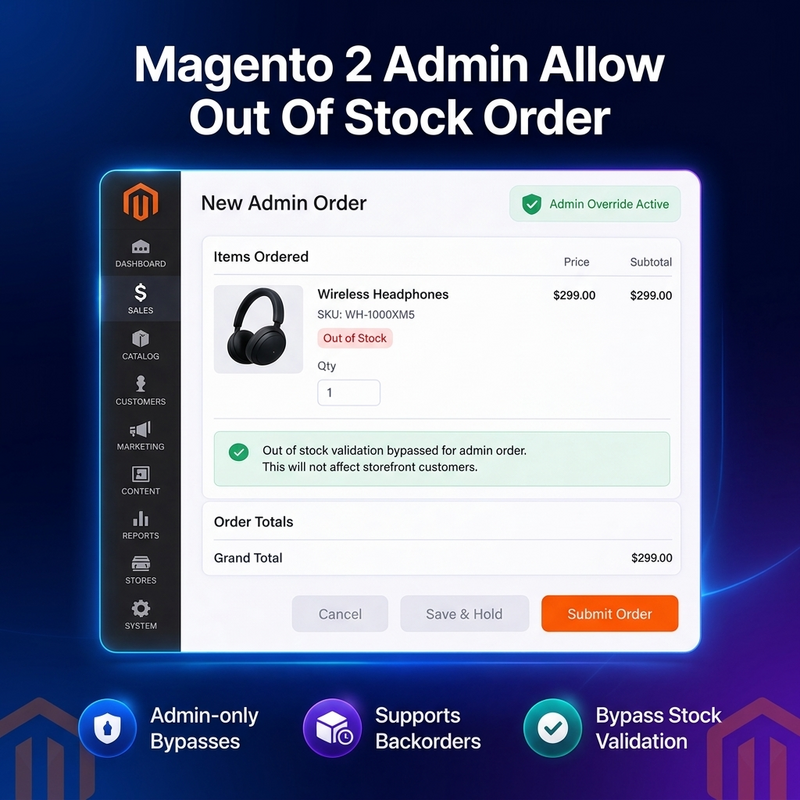
The Magento2 Admin Allow Out Of Stock Order extension enables Magento administrators to create orders for out-of-stock products from the Admin panel. Storefront shoppers continue to see normal stock behavior; only logged-in admin sessions get the exception when the settings below are enabled.
- Bypass stock validation for admin-created orders
- Enable Magento backorder behavior for admin users when placing those orders
- Works with Magento inventory / MSI-aware stock checks used during admin quote validation
- Simple on/off switches under Stores → Configuration → Toweringmedia
- Compatible with Magento 2.4.x Open Source & Adobe Commerce
Key Features
- Enable Extension — master switch for the module behavior
- Enable Backorders for Admin Users — treat admin sessions as backorder-capable when placing orders
- Bypass Stock Validation for Admin — skip stock availability blocks that normally stop out-of-stock admin quotes
- Admin-only scope — relies on Magento backend session; storefront rules stay intact
- Simple config — three Yes/No fields, no complex rule engine to maintain
- Hyvä-friendly — admin/backend-focused; no storefront theme dependency
System Requirements
- Magento: 2.4.x (Open Source & Adobe Commerce)
- PHP: 8.1, 8.2, or 8.3
- Towering Media Composer repository credentials
toweringmedia/module-base(required dependency)
General Composer install steps for Towering Media modules: Installation guide.
Installation Overview
Step 1: Authenticate Composer
Add your Towering Media credentials to auth.json in the Magento root (same pattern as other Towering Media extensions).
Step 2: Require the package
composer require toweringmedia/module-admin-allow-out-of-stock-orderStep 3: Enable and upgrade
php bin/magento module:enable Toweringmedia_AdminAllowOutOfStockOrder
php bin/magento setup:upgrade
php bin/magento setup:di:compile
php bin/magento setup:static-content:deploy -f
php bin/magento cache:flush
Confirm the enable name in the package’s registration.php / module.xml after install. Production stores should follow your normal deploy process.
Need help installing? Contact Towering Media or browse more modules in Magento 2 Extensions.
Configure in Admin
- Log in to Magento Admin.
- Go to Stores → Configuration → Toweringmedia → Admin Allow Out of Stock Order (also linked from the Toweringmedia menu).
- Set Enable Extension to Yes.
- Set Enable Backorders for Admin Users to Yes when staff should place backordered lines from Admin.
- Set Bypass Stock Validation for Admin to Yes when stock availability checks should not block admin order creation.
- Save Config, then flush Magento cache.
Open full wiki documentation →
Typical Admin Order Workflow
- Confirm the extension settings are enabled at the correct config scope.
- Open Sales → Orders → Create New Order (or your usual admin order path).
- Select the customer and add the out-of-stock SKU.
- Complete shipping, payment, and submit the order as you normally would in Admin.
- Notify fulfillment that the line is a controlled backorder / special order.
vs Back-in-Stock Notifications
These two products often get confused because both talk about “out of stock”—but they solve different jobs:
- Admin Allow Out Of Stock Order (
toweringmedia/module-admin-allow-out-of-stock-order) — staff place Magento Admin orders when qty is zero. - Back-in-Stock Notifications (
toweringmedia/module-backorder) — shoppers subscribe on the PDP for email/SMS when stock returns.
Many merchants run both: admins take phone orders now; shoppers get notified later. Product page for restock alerts: Magento 2 Back-in-Stock Notifications Extension.
Troubleshooting
Still can’t add out-of-stock items in Admin
- Confirm Enable Extension = Yes and both feature toggles match your intent
- Save at the correct website/store scope, then flush cache
- Verify you are in an Admin session (frontend “login as customer” is not the same)
- Re-check MSI source qty and salability rules for the SKU
Storefront customers can suddenly buy out-of-stock items
- This module should not open storefront purchasing by itself—re-test with only this module’s settings changed
- Check Magento native backorders / “Display Out of Stock” catalog settings separately
Config not appearing
- Confirm
Toweringmedia_AdminAllowOutOfStockOrderis enabled - Run
setup:upgradeand flush cache after Composer install - Look under Stores → Configuration → Toweringmedia
Still stuck? Contact support with Magento version, MSI yes/no, and whether the failure is Admin create-order vs storefront.
Frequently Asked Questions
Does this notify customers when stock returns?
No. That is Back-in-Stock Notifications. This extension is for admin order placement only.
Will shoppers see different stock on the storefront?
Storefront availability remains governed by Magento catalog/inventory settings. The extension targets admin order workflows.
Is it Hyvä compatible?
Yes. Behavior is admin/backend-focused and does not depend on Luma or Hyvä templates.
What is the Composer package name?
toweringmedia/module-admin-allow-out-of-stock-order (module Toweringmedia_AdminAllowOutOfStockOrder). Do not confuse with toweringmedia/module-backorder.
Where is the deepest documentation?
This CMS page is the overview. Deep docs stay on the wiki user guide. General Composer install: Installation.
How much does it cost?
$149 for Magento2 Admin Allow Out Of Stock Order (see current pricing on the product page).
Related Extensions & Resources
Want our Magento team to handle it?
Towering Media installs, configures, and customizes Admin Allow Out Of Stock Order for Magento 2 stores — along with ongoing Magento maintenance, admin tooling, email deliverability, and reporting.
Get the Extension
Let support and sales place Magento Admin orders even when inventory is temporarily sold out—without opening the storefront to inaccurate availability.
Prefer deep docs? Open the full wiki guide.