
Magento 2 Change Customer Password from Admin User Guide
Magento 2 Change Customer Password from Admin User Guide
Support tickets stall when customers cannot reset email. This guide covers Towering Media Change Customer Password from Admin ($39.99)—set or update customer passwords in Magento admin—plus install overview, security tips, and FAQ.
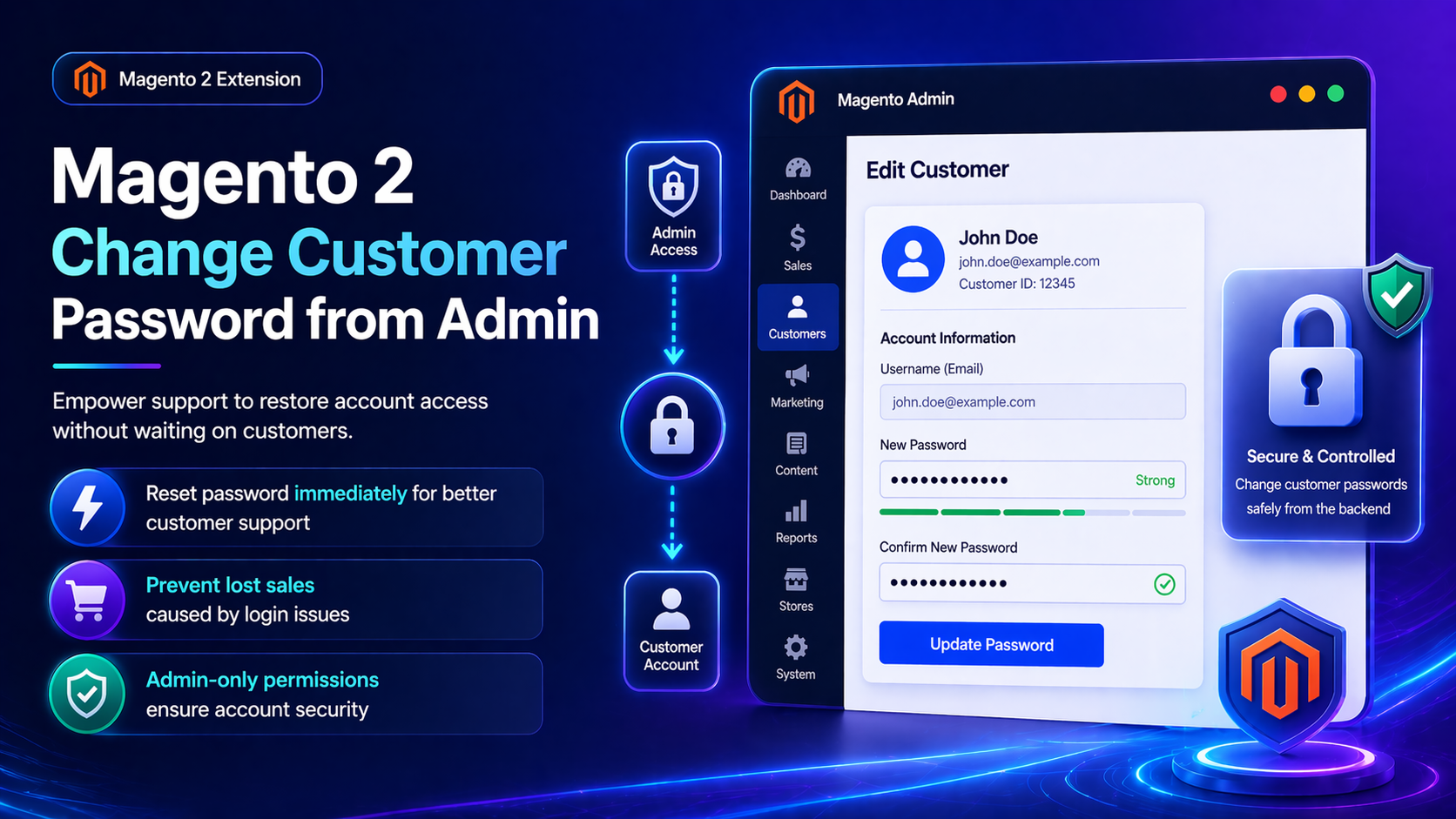
For deep configuration screenshots and edge cases, see the detailed wiki documentation. Product details and add-to-cart live on the Magento 2 Change customer password from admin page.
Table of Contents
Why Password Resets Still Fail
Forgot-password email is not enough when SMTP fails or customers never get the message:
- Support backlog — agents cannot unblock logins
- Email dependency — reset links never arrive
- No admin set-password — Magento core limits what staff can do
- Security process gaps — ad-hoc DB password hacks
What This Extension Solves
Change Password from Admin adds Magento admin capability to modify customer passwords safely through the UI.
- Set/update customer passwords from admin
- Avoid raw database password edits
- Faster support resolution when email reset fails
Key Features
- Lightweight admin UX extension
- Composer: toweringmedia/module-change-password-admin
- Magento 2.4 compatible
System Requirements
- Magento 2.4.x
- Admin ACL appropriately restricted
- Towering Media Composer credentials
General Composer install steps for Towering Media modules: Installation guide.
Installation Overview
Step 1: Authenticate Composer
Add your Towering Media credentials to auth.json in the Magento root (same pattern as other Towering Media extensions).
Step 2: Require the package
composer require toweringmedia/module-change-password-adminStep 3: Enable and upgrade
php bin/magento module:enable Toweringmedia_Modifypassword
php bin/magento setup:upgrade
php bin/magento setup:di:compile
php bin/magento setup:static-content:deploy -f
php bin/magento cache:flush
Exact module enable name may match your package’s registration.php / module.xml—confirm in the package after install. Production stores should follow your normal deploy process.
Need help installing? Contact Towering Media or browse more modules in Magento 2 Extensions.
Change a Password in Admin
- Install/enable the module.
- Customers → All Customers → open a customer.
- Locate Change Password / Modify Password fields (see wiki).
- Set a strong temporary password; save.
- Securely communicate the temporary password; ask the customer to change it after login.
Verify Customer Login
Confirm on storefront:
- Log in with the new password on the storefront
- Confirm old password no longer works
- Optional: require password change on next login if your process includes it
Troubleshooting
Option missing for some admins
- Adjust Magento ACL for the role
- Flush cache after ACL changes
Frequently Asked Questions
Does this email the customer automatically?
Follow wiki behavior for your version—many teams still notify out-of-band for security.
Deep docs?
Price?
$39.99 on the product page.
Related Extensions & Resources
Want our Magento team to handle it?
Towering Media installs, configures, and customizes Change Customer Password from Admin for Magento 2 stores — along with ongoing Magento maintenance, admin tooling, email deliverability, and reporting.
Get the Extension
Unblock customers from Magento admin when reset emails fail—without dangerous database password hacks.
Prefer screenshots and deep steps? Open the full wiki guide.