
Magento 2 Product Labels User Guide
Sale badges, “New,” bestsellers, and limited-stock callouts should appear automatically—not as one-off image edits. This guide shows how Towering Media Product Labels ($219) creates text and image badges, assigns them with flexible rules and schedules, and displays them across category, PDP, search, and related product areas.
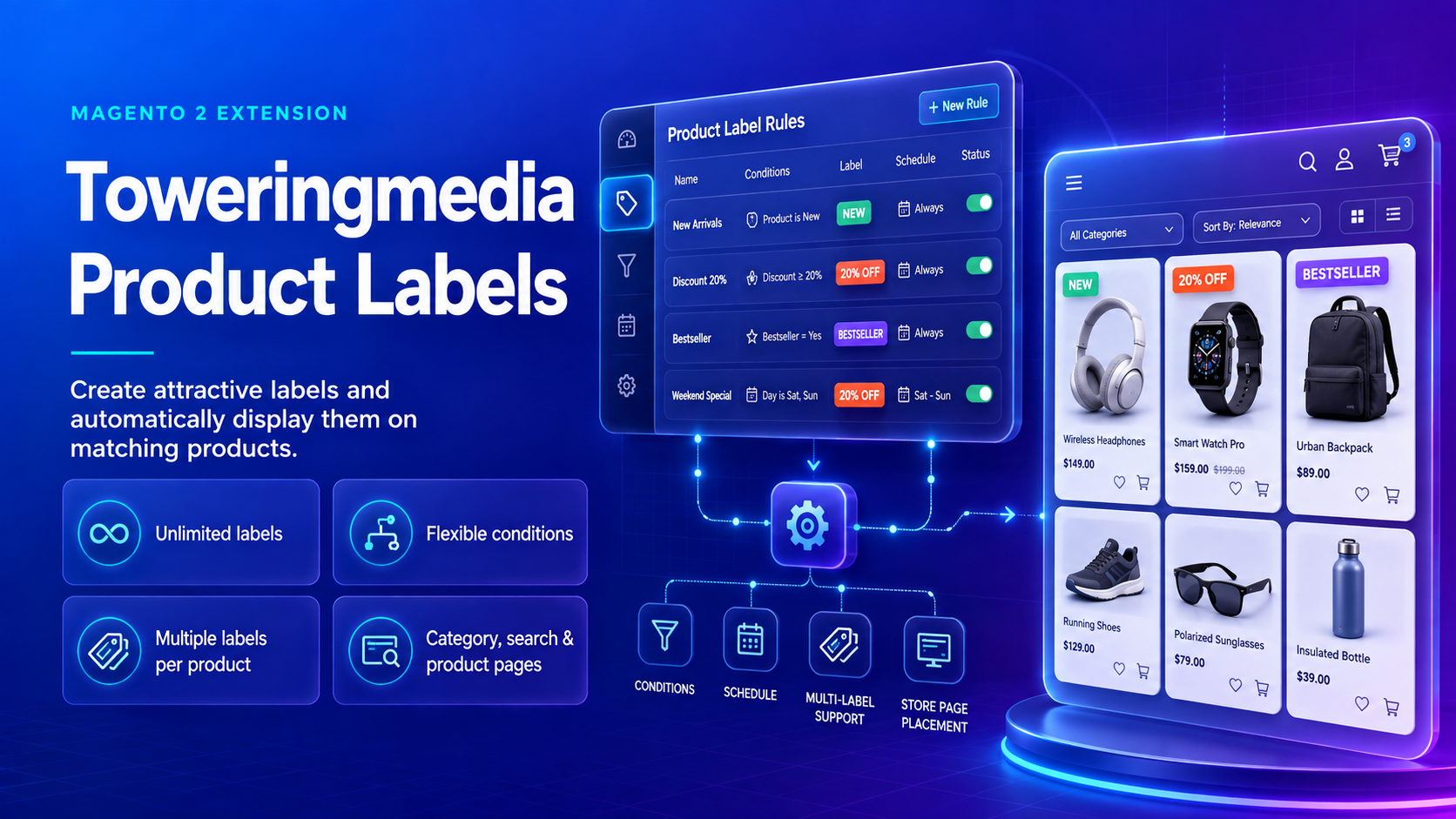
There is no separate wiki page for this extension yet—this CMS guide is the primary how-to. Product details, pricing, and add-to-cart live on the Towering Media Product Labels page.
Table of Contents
Why Manual Badges Fall Short
Merchants need shoppers to notice sales, new arrivals, and important product facts. Doing that by editing product images or hard-coding theme markup does not scale:
- Missed promotions — discounts and launches fail to stand out in busy category grids
- Manual busywork — uploading badge overlays product-by-product is slow and easy to forget
- Campaign churn — seasonal sales need start/end dates, not another round of image swaps
- Inconsistent branding — ad-hoc stickers drift from your store’s look on mobile and desktop
What This Extension Solves
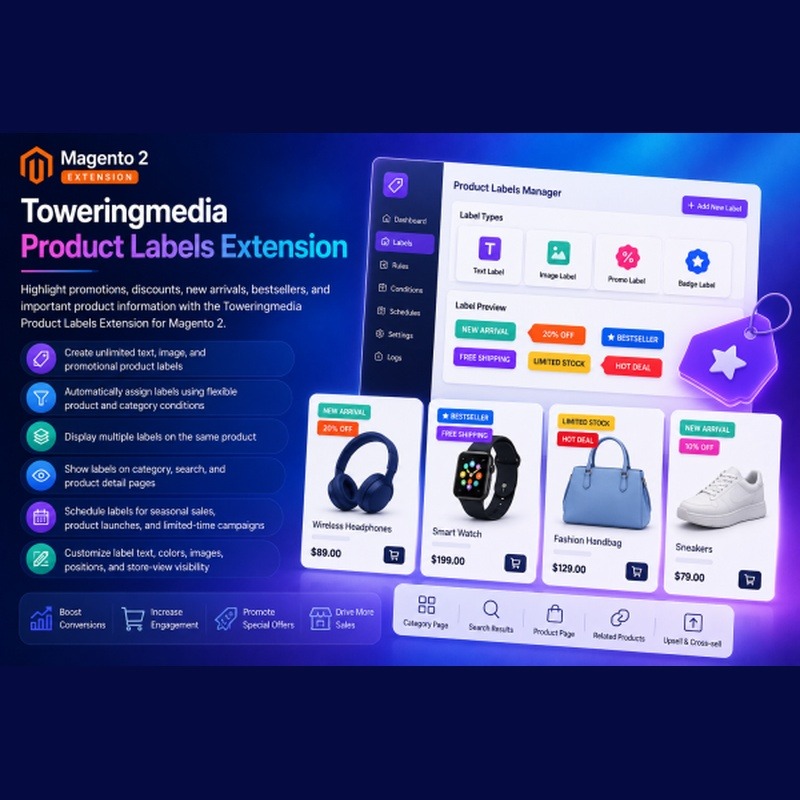
The Towering Media Product Labels Extension lets you design unlimited text and image badges, then show them automatically on matching products using attributes, categories, price, stock, customer groups, store views, and date ranges.
- Unlimited text, image, and promotional labels
- Flexible condition-based rules (manual assignment also supported)
- Multiple labels on one product with priority and max-label limits
- Scheduling for flash sales, launches, and seasonal campaigns
- Display on category, PDP, search, related/upsell/cross-sell, and cart contexts
- Hyvä-friendly storefront rendering baseline
Key Features
- Text labels and image/sticker labels
- Ready shapes: rectangle, rounded, circle, oval, ribbon, flag, pill
- Nine-position placement codes with overlay-ready CSS for themes
- Dynamic text variables such as
{SAVE_PERCENT},{STOCK},{SKU}, and{ATTR:code} - Per-context max labels (category, PDP, related, cart, mini-cart, checkout)
- Store-view and customer-group aware display
- Open Source & Adobe Commerce Magento 2.4.x
System Requirements
- Magento: 2.4.x (Open Source & Adobe Commerce)
- PHP: 8.1, 8.2, or 8.3
- Towering Media Composer repository credentials
- A theme that places labels inside a
position:relativeproduct-image container when using overlay positions (addtm-product-labels--overlayas documented in the package)
General Composer install steps for Towering Media modules: Installation guide.
Installation Overview
Step 1: Authenticate Composer
Add your Towering Media credentials to auth.json in the Magento root (same pattern as other Towering Media extensions).
Step 2: Require the package
composer require toweringmedia/module-product-labelsStep 3: Enable and upgrade
php bin/magento module:enable Toweringmedia_ProductLabels
php bin/magento setup:upgrade
php bin/magento setup:di:compile
php bin/magento setup:static-content:deploy -f
php bin/magento cache:flush
Exact module enable name is Toweringmedia_ProductLabels (confirm in the package’s registration.php / module.xml after install). Production stores should follow your normal deploy process.
Need help installing? Contact Towering Media or browse more modules in Magento 2 Extensions.
Create Labels
- Log in to Magento Admin.
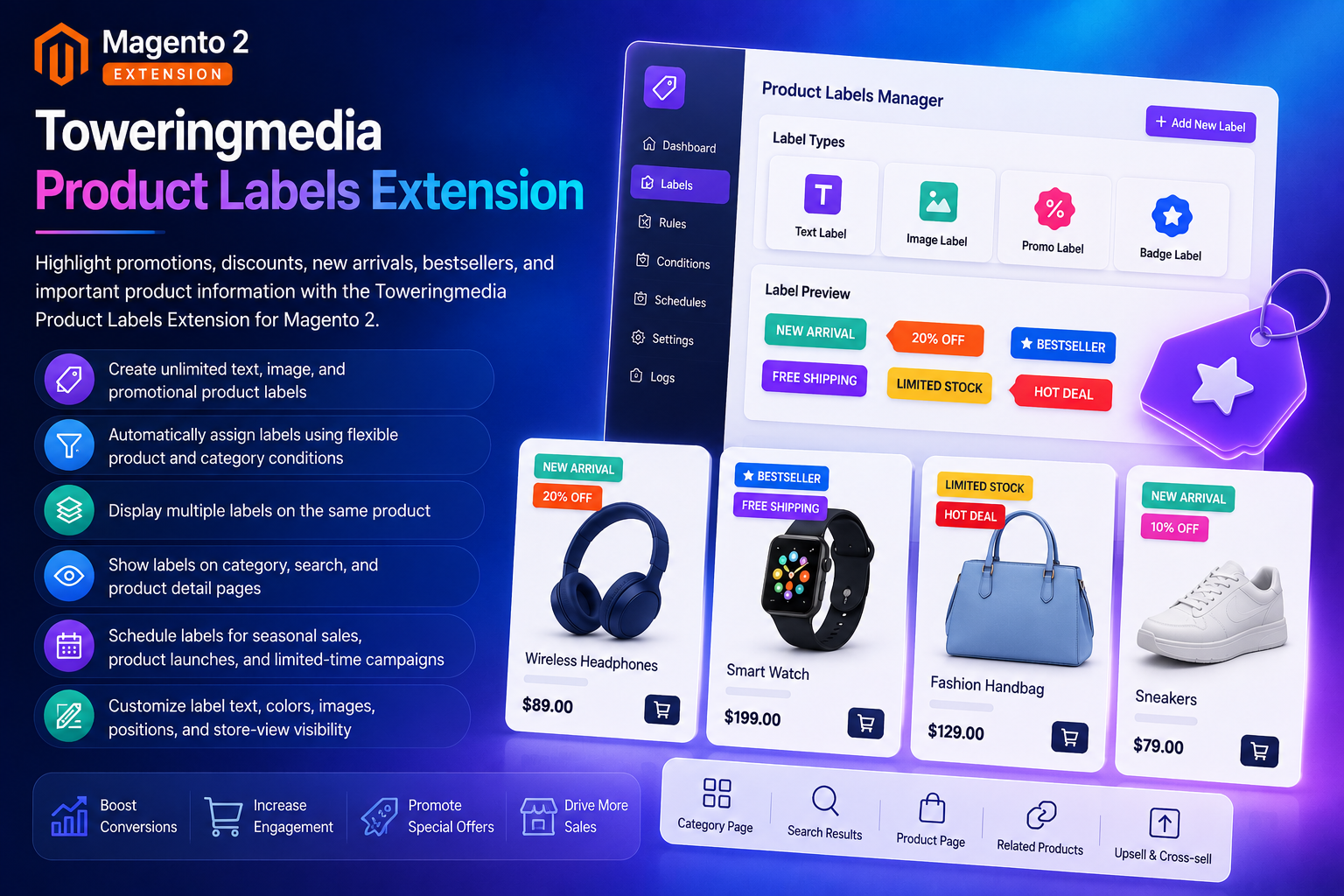
- Go to Catalog → Product Labels → Manage Labels.
- Click Add New Label (or edit an existing one).
- Choose text or image style; set colors, shape, position, and optional custom CSS.
- For text labels, enter content—optionally with variables like
Save {SAVE_PERCENT}%orOnly {STOCK} left. - Set priority (lower/higher depending on your ordering rules) and enable the label.
- Save, then flush cache if labels do not appear immediately on the storefront.
Label Rules & Scheduling
Rules decide which products get a label—and optionally when.
- Open Catalog → Product Labels → Manage Rules.
- Create a rule and attach one or more labels.
- Add conditions based on product attributes, categories, SKU, price, stock status, customer groups, and store views.
- Set start and end dates for seasonal sales, launches, or flash promotions.
- Enable the rule and save.
- Automatic — rule conditions assign labels as catalog data changes
- Manual — assign specific labels to products when a one-off badge is enough
- Scheduled — campaigns turn on and off without re-editing images
Global Configuration
Store-level defaults live under Magento configuration:
- Go to Stores → Configuration → Catalog → Product Labels.
- Set Enable Module to Yes.
- Configure Default Max Labels and per-context limits (category, product view, related, upsell, cross-sell, cart, mini-cart, checkout).
- Optionally set the image base path for image labels and whether to hide labels whose variables resolve to empty or zero.
- Save Config, then flush cache.
Where Labels Appear
Depending on configuration and theme integration, labels can show on:
- Category / listing pages
- Product detail pages
- Search results
- Related, upsell, and cross-sell blocks
- Cart, mini-cart, and checkout item contexts
Pair Product Labels with complementary catalog extensions—for example Product Image Gallery for richer PDP media and Product FAQ for on-page answers—so promotions and product education work together.
Troubleshooting
Labels do not appear on the storefront
- Confirm the module and the specific label/rule are enabled
- Check that the product matches rule conditions (category, attribute, stock, customer group, store view)
- Verify schedule dates—future start or past end dates hide the label
- Flush Magento cache (and full-page cache / Varnish if used)
- Confirm theme templates include the Product Labels output in listing and PDP image areas
Too many badges on one product
- Lower max-label limits under Stores → Configuration → Catalog → Product Labels
- Adjust label priority so only the most important badges win
Variables show blank or zero
- Confirm the product has the underlying data (special price, stock qty, attribute value)
- Enable “Hide Labels With Empty Or Zero Variables” if you prefer those badges to disappear instead of showing empty text
Overlay position looks wrong
- Ensure the product image container is
position:relativeand uses the overlay class from the package docs - Test another position code (corners vs. ribbons) to confirm CSS is loading
Still stuck? Contact support with a screenshot of the label/rule admin screens and the product URL where you expect the badge.
Frequently Asked Questions
Can labels be assigned automatically?
Yes. Use Manage Rules with conditions on attributes, categories, pricing, stock, SKU, customer groups, store views, and date ranges—so you do not update products one by one.
Can I show multiple labels on one product?
Yes. Multiple labels are supported (for example “New,” “20% Off,” and “Free Shipping”). Priority ordering and max-label limits keep the layout under control.
Where do labels display?
Category pages, PDPs, search results, related/upsell/cross-sell areas, and cart-related contexts—depending on your configuration and theme integration.
Can I schedule seasonal campaigns?
Yes. Set start and end dates on rules so flash sales and holiday badges turn on and off automatically.
Is it Hyvä compatible?
Yes. The extension ships a Hyvä-friendly rendering baseline for supported storefront contexts. Confirm theme placement for overlay positions after install.
Where is the documentation?
This CMS page is the primary user guide (wiki docs for Product Labels are not published yet). General Composer install: Installation. Product page: Towering Media Product Labels.
How much does it cost?
$219 for the Towering Media Product Labels Extension (see current pricing and options on the product page).
Related Extensions & Resources
Want our Magento team to handle it?
Towering Media installs, configures, and customizes Product Labels for Magento 2 stores — along with Hyvä theme development, storefront design, and front-end customization.
Get the Extension
Stop editing product images for every sale. Create Sale, New, and limited-stock badges once—then let rules and schedules put them on the right products across your Magento 2 storefront.
Need the catalog? Browse Magento 2 Extensions.